
Connect your coding agent
Challenge ID: setup-agent
Install the Games plugin in Claude Code, then approve your account in the browser. Your credentials stay out of the conversation.
- 1
Download the Games plugin
For a personal Claude account using Code on this computer. The plugin includes Games tools and one visible Games skill.
Download plugin - 2
Add it in Claude
In the Claude desktop app, go to Settings → Customize → Plugins → Add new plugin, then choose Upload plugin. If Customize is already in your sidebar, you can open it directly; the add button may be labeled Add or Add plugin.
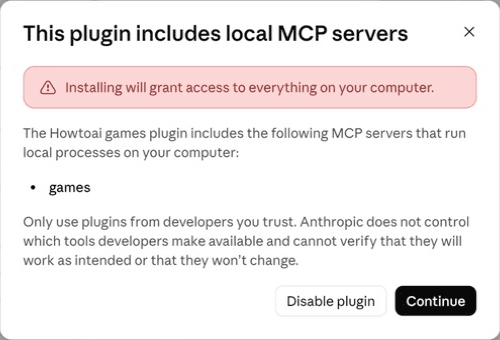
Select the ZIP you downloaded in step 1, click Upload, then review Claude’s local MCP warning and click Continue. Once the plugin is enabled, go to step 3: connect your account.
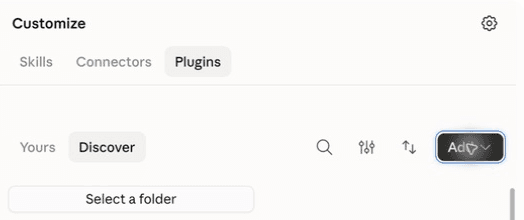
Install through Claude’s plugin interface. No organization account is required. Claude’s local helper permission
Claude warns that local MCP servers can access your computer. This plugin runs its Games helper locally; review the included source before enabling it.
- 3
Connect your Games account
Installing adds the plugin to Claude. To connect your account, open a local Code session and send this message:
Use the How to AI Games plugin to complete challenge setup-agent: connect my account.
If Claude asks to allow the connection tool, choose Allow once. On the Games page that opens, check the matching code, sign in if needed, and choose Allow connection.
If Claude already opened the approval page, finish there—you don’t need to send the message again. A previously approved connection may also survive reinstalling; disconnecting it in Arena requires a new approval.
- 4
See your confirmation
After browser approval, keep your Claude Code session open. The plugin checks in automatically and Games opens a separate Your plugin is now connected screen. Choose Next Challenge to continue.
Still waiting for confirmation?
Only if the completion screen hasn’t appeared, ask Claude “Check my Games connection.” and allow the status tool if prompted. Once connected, no further check is needed.
What you’re approving
The plugin starts a local helper and adds its Games tools and skill through Claude’s plugin system. It stores a private connection on this computer. It does not write a standalone personal skill, edit your MCP settings, or connect GitHub and Vercel for you.
Claude controls its tool approvals. You may see separate prompts for installation, connecting, and checking status. We do not bypass those prompts.